Help
Everything you need to connect Klarna, map your e-conomic accounts, run syncs, and troubleshoot errors in Klarna to e-conomic.
Getting started
Install the app from the e-conomic Marketplace. You will be redirected here to finish setup in three steps:
- Connect e-conomic — we use e-conomic's secure grant-token model. Your e-conomic password is never stored.
- Connect Klarna — add your Settlements API username (UID) and password. Choose environment (live or playground) and region.
- Map accounts — choose your cashbook journal, fee, net, difference (rounding), and optional clearing account.
When setup is complete, the Home dashboard shows a green status banner and you can run your first sync.
Home dashboard
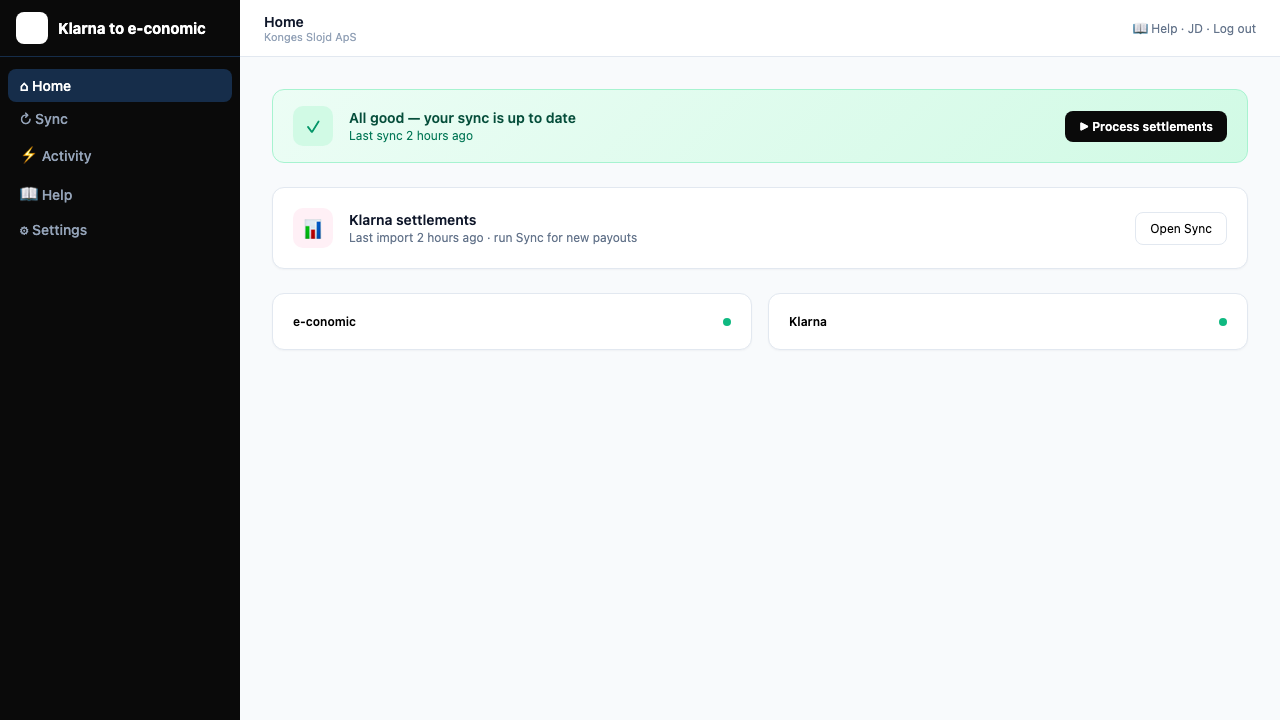
Home is your overview after login. The status banner at the top reflects the current state of your setup and sync:
- All good — last sync completed successfully. Use Process settlements when you want to fetch new Klarna payouts.
- Sync in progress — a sync is running. The banner updates automatically while payments are imported.
- Needs attention — a failed sync or payments that are not yet resolved. Open Sync or Activity with the Needs attention filter.
- e-conomic access lost — reconnect in Settings before syncing again.
- Setup checklist — shown until e-conomic, Klarna, account mapping, and your first sync are complete.
When Klarna is connected, the settlements card shows sync status, pending payments, or the time of the last import. Below the banner you will see connection status, sync statistics (last 30 days), the next scheduled run (if enabled), and a table of recent sync runs. Click any run to open its detail page.
Connections
e-conomic
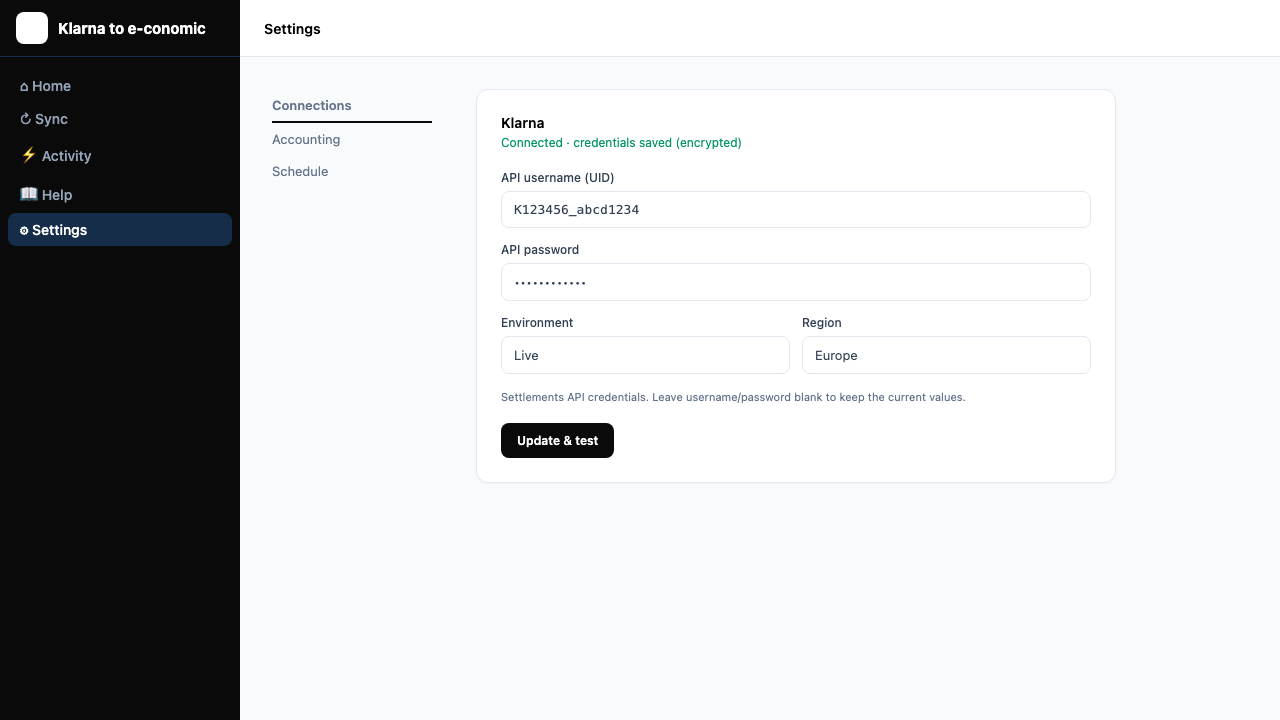
The app needs permission to read invoices and create cashbook vouchers in your e-conomic agreement. After you log in, open Settings → Connections.
- Reconnect — use this if e-conomic access was revoked or expired.
- Disconnect — removes the grant token from this app. Uninstalling from the Marketplace also revokes access immediately.
Klarna
In the Klarna Merchant Portal, create Settlements API credentials (username / UID and password). Paste them in Settings → Connections (or during onboarding). Credentials are encrypted after saving. See also the Settlements API documentation.
Accounting mapping
Each synced Klarna settlement line becomes a balanced cashbook voucher in e-conomic:
- Gross — customer payment matched to a booked invoice, or posted to a clearing account when invoice matching is off.
- Fee — Klarna fees from the payout (FEE rows attached to the related SALE/RETURN).
- Net — payout amount deposited to your bank (sale minus fees).
- Difference — when invoice gross ≠ payment gross (rounding), or a small DKK FX rounding line on non-DKK settlements.
From Klarna we import SALE, RETURN, and related types (refunds, credits, fee refunds). Standalone FEE rows are folded into the related sale. Holdbacks, releases, and other non-payment types are skipped.
Invoice matching mode
Choose how payments without a booked invoice are handled:
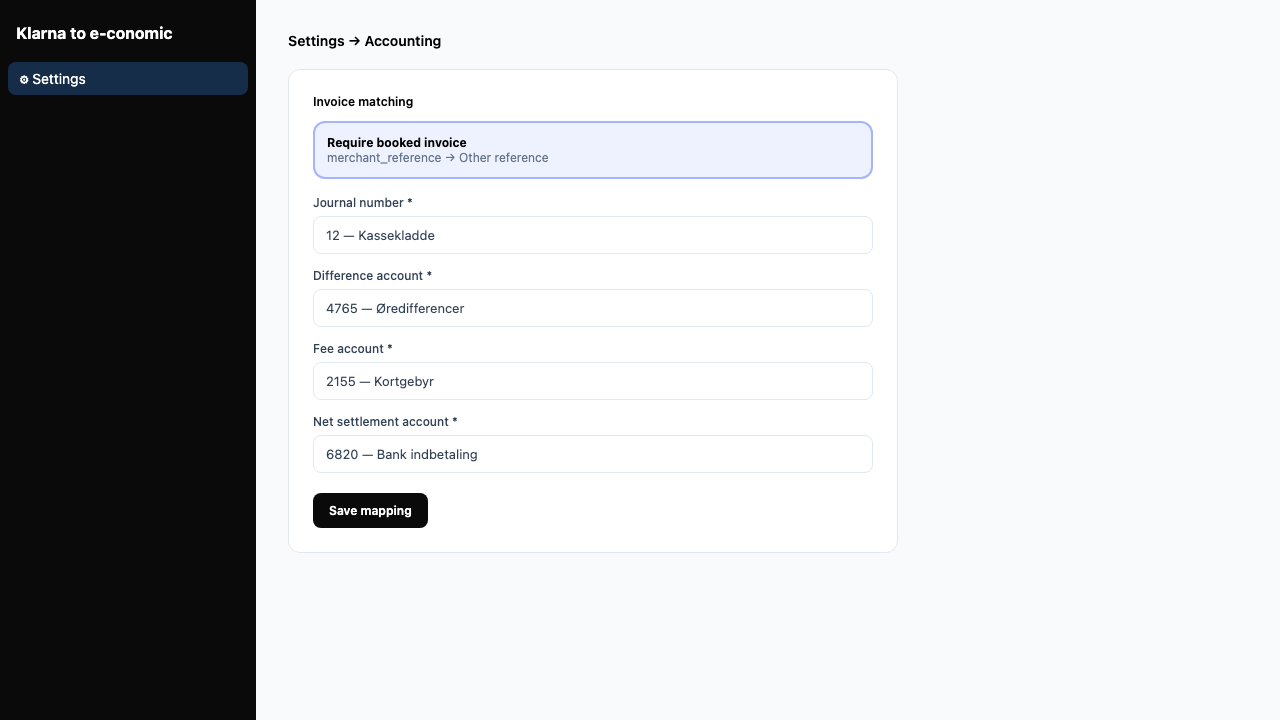
- Require booked invoice — matches Klarna merchant_reference to the e-conomic invoice Other reference field. If your shop does not put the order/invoice id there, use flexible mode instead.
- Allow payments without invoice — unmatched gross amounts post to a clearing account you choose. Useful when not every payment has an invoice yet.
Accounts to map
- Cashbook journal — where vouchers are created.
- Difference account — small rounding when payment gross ≠ invoice gross, or a DKK FX rounding line on non-DKK settlements.
- Fee account — Klarna transaction fees per settlement line.
- Net / bank account — the net settlement amount deposited to your bank.
- Clearing account — only required in flexible invoice mode.
Account numbers depend on your chart of accounts. If you are unsure, ask your accountant before saving.
Sync
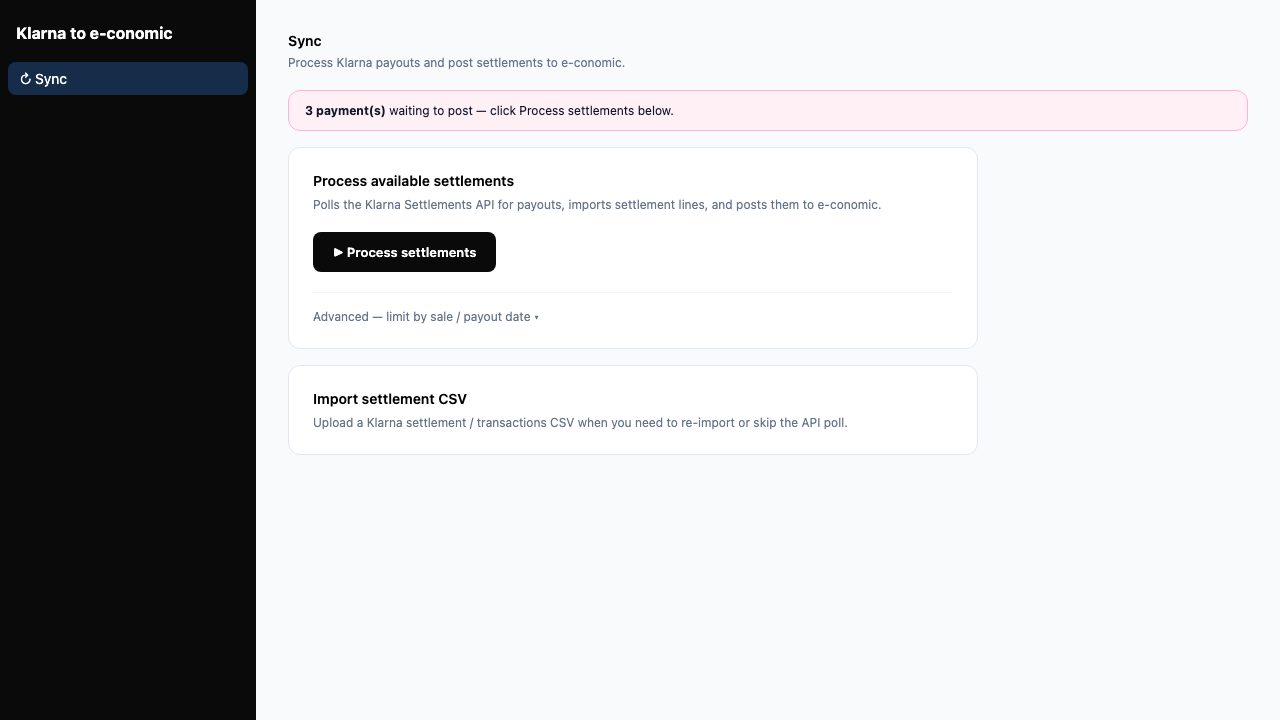
Open Sync in the app to fetch and post Klarna settlements. The app works in two steps:
- Ingest settlements — Klarna payouts (from the Settlements API or CSV upload) are imported; sale, return, and related payment lines become settlement rows.
- Post to e-conomic — each payment is turned into a cashbook voucher using your account mapping.
Already-imported payments are skipped automatically — re-running a sync does not create duplicates in e-conomic. You can also upload a settlement CSV manually when needed.
Process settlements
Click Process settlements to poll Klarna payouts and post new lines. Use Advanced to limit by sale date, or upload a settlement CSV.
Scheduled sync
In Settings → Schedule, choose daily or weekly automatic sync and the time of day. The Home dashboard shows when the next run is due.
Activity
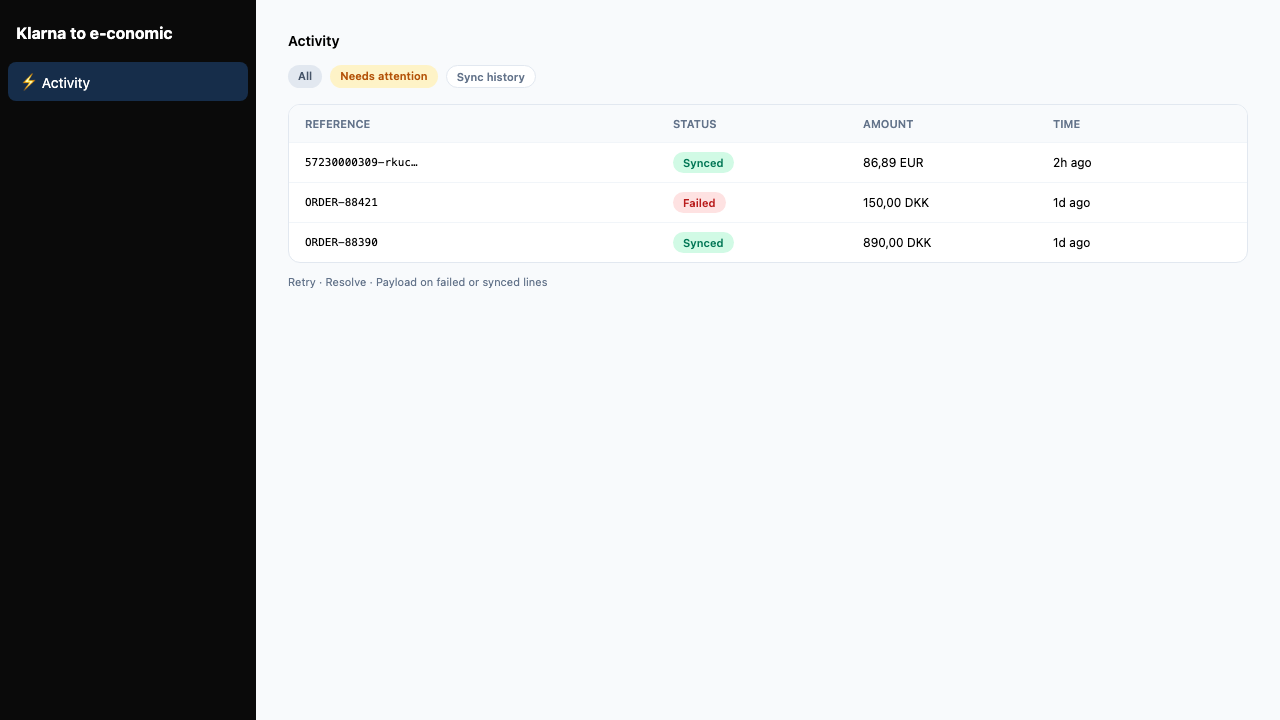
The Activity page shows your payment timeline and sync history in one place. Filters and paging update instantly without reloading the whole page.
Filters and search
- All — individual payments plus sync history below.
- Sync history — hide payments and show only the list of sync jobs.
- Needs attention — payments that failed and still need your action.
- Search — type a payment or settlement reference; results update as you type.
Payments
Each row is one payment from a Klarna settlement report. You see the reference, status, time, and settlement batch. Use Payload to inspect raw payment, settlement, and e-conomic voucher data when troubleshooting. Actions appear on failed or synced payments:
- Retry — try again to post this payment to e-conomic (for example after you booked the missing invoice). A short confirmation toast appears when done; the list refreshes automatically.
- Resolve — hide the error when you handled it outside the app (for example, entered the voucher manually in e-conomic).
- Resolve all — available on the Needs attention filter to clear every open error at once.
- Force retry — on already-synced or skipped payments only. Use with care: this may create a duplicate voucher in e-conomic. The app asks you to confirm first.
Sync history
The table at the bottom lists each sync job with scope (all reports or a date filter), trigger (manual, scheduled, or CSV import), and result counts. Click a row to open the sync run page with every payment in that job and a Retry processing option when errors occurred.
The Home banner counts only unresolved errors — successfully retried or manually resolved payments no longer increase the attention count.
Settings
Settings
is organised in tabs on the left (or a dropdown on mobile). Switch tabs without leaving the page; the URL updates so you can bookmark a section (for example ?tab=schedule).
When you save a form, changes are sent in the background and a toast notification confirms success or shows an error.
- Connections
- Connect, reconnect, or disconnect e-conomic and Klarna.
- Accounting
- Invoice matching mode and account mapping.
- Schedule
- Automatic sync frequency and time.
- General
- Company display name and timezone.
- Notifications
- Email alerts when a sync has errors or warnings.
- Security
- Change your login password.
Sidebar tip: use the arrow at the bottom of the left menu to collapse it. Your preference is remembered on this browser.
Troubleshooting
"e-conomic access lost" on Home
Reconnect in Settings → Connections. Make sure you select the same agreement number as before.
Payment failed — no matching invoice
Ensure the e-conomic invoice Other reference equals the Klarna merchant_reference, then Retry in Activity. Or switch to flexible invoice mode and map a clearing account in Settings → Accounting.
No settlements arriving
Confirm Settlements API credentials in Settings → Connections (correct environment and region), then run Process settlements for the payout date range. You can also upload a settlement CSV on Sync.
Klarna connection test fails
Verify the Settlements API username and password in the Klarna Merchant Portal. Use playground credentials with environment Playground, and live credentials with Live. Pick the correct region (Europe, North America, or Oceania).
Settlement download failed
Usually the username/password cannot call the Settlements API. Update credentials in Settings, then Process settlements again.
Payment gross does not match invoice
Small differences are posted to your Difference account (configured in Settings → Accounting). If the gap is large, check that the booked invoice gross matches the Klarna SALE amount.
Payment failed — e-conomic API error
Open the payment or sync run in Activity and read the error message shown on the line. Common causes: wrong journal, missing voucher number series for the accounting year, or invalid account numbers.
Retry does not fix the problem
Fix the underlying issue in e-conomic or your mapping first, then retry the individual payment. If you already fixed it manually in e-conomic, use Resolve instead of force retry.
Duplicate voucher in e-conomic
This can happen if you used Force retry on a payment that was already synced. Delete or correct the duplicate in e-conomic, then use Resolve on the line in Activity if needed.
Non-DKK settlement does not balance in e-conomic
Klarna payouts may be in EUR, NOK, or other currencies. The app posts amounts in that currency and adds a small DKK line on your Difference account when e-conomic FX rounding leaves a few øre unbalanced (up to 1.00 DKK). If the error mentions a larger DKK residual, check the voucher lines in Activity → Payload.
Page looks outdated after an action
Activity and Settings refresh their content automatically after retry, resolve, or save. If something still looks wrong, hard-refresh the browser (Cmd+Shift+R on Mac, Ctrl+Shift+R on Windows).
Forgot your password?
Use Forgot password? on the login page.
Still need help?
Email us at info@2app.dk — we normally reply within 24 hours. See also our Support page.